How to setup ZipcodeInfo’s HubSpot Application:
After you’re subscription is live, be sure to complete the rest of your account information here:
How to use the zipcode/address lookup feature:
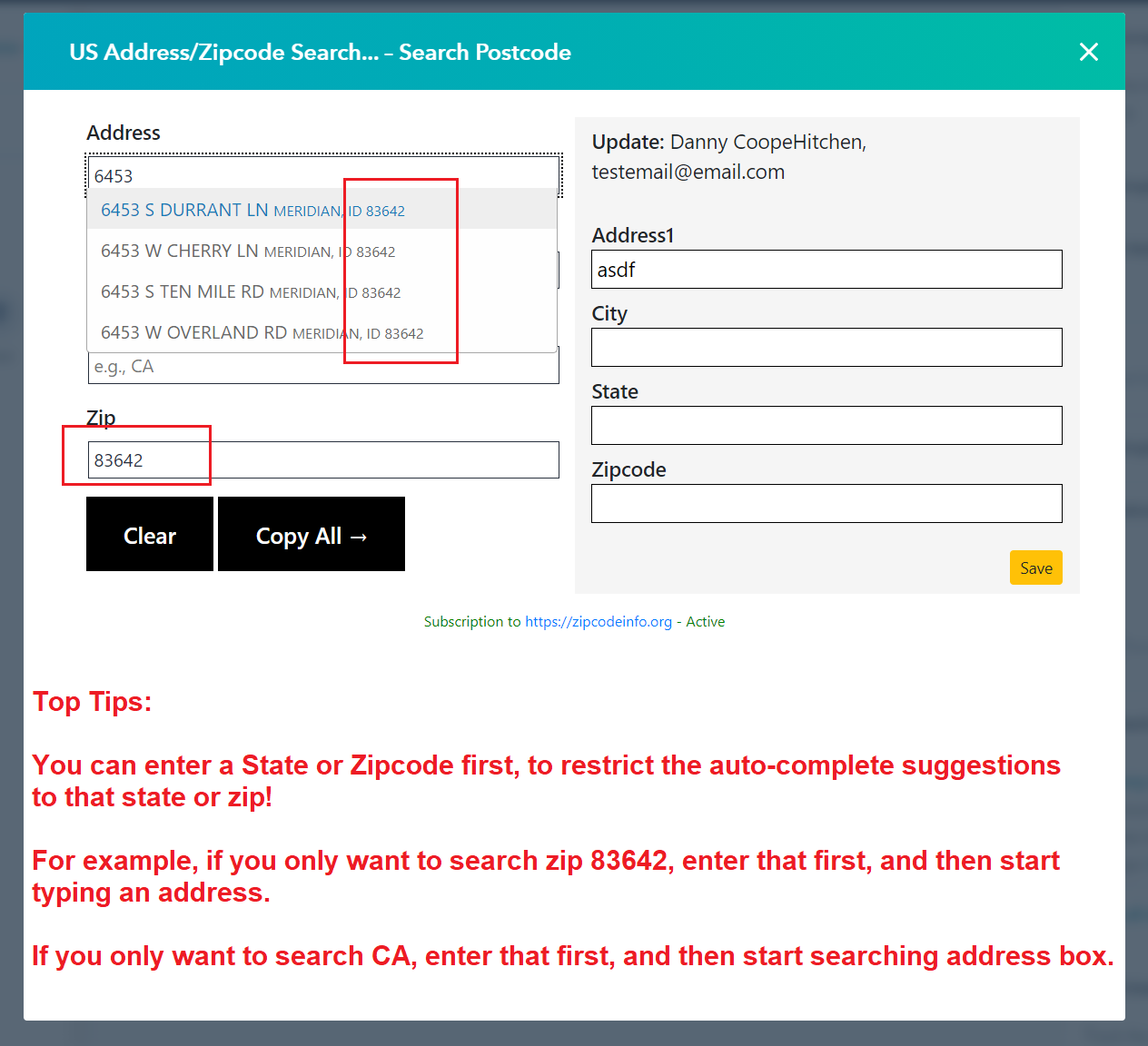
- (see video below) Visit a contact, company or deal record and click US Address/Zipcode Search. Using it on deals? See Using the lookup on deals below for the extra setup steps.
- (see video below) Search an address and select the correct one, click copy all and then save.
Set up US ZIP code & address lookup in HubSpot
Connect the app to your HubSpot portal, map your address fields, and start saving accurate US addresses in a few minutes. Here is the full walkthrough.
Step-by-step
Install from HubSpot
Click Install on HubSpot, choose the portal you want to connect, and approve the requested CRM scopes. You are redirected back to ZipcodeInfo when the connection is complete.
Start your subscription
Pick the $19/month plan and complete checkout. One subscription covers your whole portal with unlimited searches and unlimited users.
Complete your profile
Open your profile to confirm which HubSpot properties each address field maps to - street, city, state, county and ZIP code.
Look up an address
Open any contact, company or deal, click the US Address / Zipcode Search card, search an address or ZIP, pick the match and save.
Mapping your address fields
Each lookup returns the street, city, state, county and ZIP code. Map these to the HubSpot properties you already use - or create custom properties - so the data lands exactly where your reports and workflows expect it.
Accurate US address data
Results cover all 50 states with correct city, state, county and ZIP, so every saved record is consistent and reliable - improving segmentation, routing and reporting across your CRM.
Using the lookup on deals
The lookup card also works on HubSpot deal records. Deals have no built-in address fields, so there are a few extra steps:
- Create the deal properties. In HubSpot, go to Settings → Properties → Deal properties and create Address, City, State, County and Zip as Single-line text properties.
- Grant deal access. Click Install on HubSpot (again, if you are already connected), choose your portal and tick the optional deals permissions. Your subscription and field mappings are kept.
- Add the card to deals. Open any deal, click Customize record, and add the Zipcode Lookup card to the right sidebar.
- Optional: use your own deal properties. If your deals already have address properties, enter their internal names under HubSpot Deal Address Fields in your ZipcodeInfo profile.
Deal permissions show a padlock?
If HubSpot says “This permission is disabled for this app by an admin”, your portal uses App Governance and a Super Admin must allow the deal permissions first:
- In HubSpot, go to Settings → Integrations → Connected Apps → Approved apps.
- Select USA Zipcode Address Search and click Manage access.
- Open Data Permissions → Optional and enable the deal permissions (or click Enable all).
- Click Install on HubSpot again and tick the deal permissions.
Setup FAQs
Which HubSpot permissions (scopes) are required?
Can I change which HubSpot fields the address is saved to?
The lookup card is not showing on my record - what do I check?
How do I use the lookup on deals?
The deal permissions show a padlock - what do I do?
Do I need to install it for each user?
Ready to go?
Install the app and start saving accurate US addresses to HubSpot.